Page cover

πŸ“™Deploy a .NET Core Application on Clouddley

Learn how to deploy a .NET Core app on Clouddley.

In this article, our focus will be on deploying a .NET Corearrow-up-right application on Clouddley. However, before going into that, it's important to understand Clouddley. Clouddley is a backend infrastructure platform for your compute resources that auto-detects your runtime and deploys your application to your server (virtual machines and bare metal). So, let's get started!

Prerequisites

Deploying your .NET Core Application

Create a Dockerfile

In the application root directory, create a Dockerfile triggr.dockerfile that defines how the app should be containerized.

circle-info

Best Practice: When creating a Dockerfile, use a lightweight base image to reduce image size. Always specify exact versions for dependencies to ensure consistency.

triggr.dockerfile
# Build stage
FROM mcr.microsoft.com/dotnet/sdk:9.0 AS build
WORKDIR /src

# Copy csproj and restore dependencies
COPY *.csproj ./
RUN dotnet restore

# Copy everything else and build
COPY . ./
RUN dotnet publish -c Release -o /app/publish /p:UseAppHost=false

# Runtime stage
FROM mcr.microsoft.com/dotnet/aspnet:9.0 AS final
WORKDIR /app
COPY --from=build /app/publish .

# Set the port to match local dev
EXPOSE 5013

ENTRYPOINT ["dotnet", "newApp.dll"]

Building and Running the Container Locally

Before deploying to Apps, verify that the container works locally.

  1. Build the Docker image:

  2. Run the container:

  3. Verify the app is running by visiting http://localhost:5013.

Accessing Apps

  • Launch your web browser and log in to your Clouddley account.

  • Navigate to Appsarrow-up-right and click on Deploy App

Image of Apps dashboard.
Accessing Apps

Step 1: Configure Service

  • Choose your Git hosting service; either GitHub or Bitbucket. For this tutorial, we will be using GitHub.

  • Click on Continue with GitHub

Configuring Git hosting service during app deployment on Clouddley.
Choose your Git hosting service

Step 2: Configure Git

  • To connect your GitHub user or organization account, click the Select username/organization dropdown and Add GitHub account.

  • Select your repository and the branch from the dropdown list or quickly search.

  • Click on Next

Configuring the Git repository during app deployment on Clouddley.
Setup the .NET Core application repository on Clouddley

Step 3: Configure your Virtual Machine

In the Choose or add server dropdown, select your virtual machine (VM) if it’s already listed. If not, select + Add Virtual Machine.

Enter the following details to configure your VM:

  • Hostname or IP address

  • Username

  • SSH port

After adding the details, use the Clouddley CLI (recommended) or connect via SSH to verify the connection.

The Clouddley CLI is a command-line tool that allows you to interact with the Clouddley Platform from your terminal.

  • Open the command line of the remote VM you want to configure to Clouddley and install Clouddley CLI by running the command:

  • To add the SSH public key, run the command:

Using the CLI, you can deploy resources, manage configurations, and automate tasks efficiently.

  • Click on Verify. This verifies the connection.

  • Click on Next

Configuring the virtual machine during app deployment on Clouddley.
Configuration of virtual machine on Clouddley
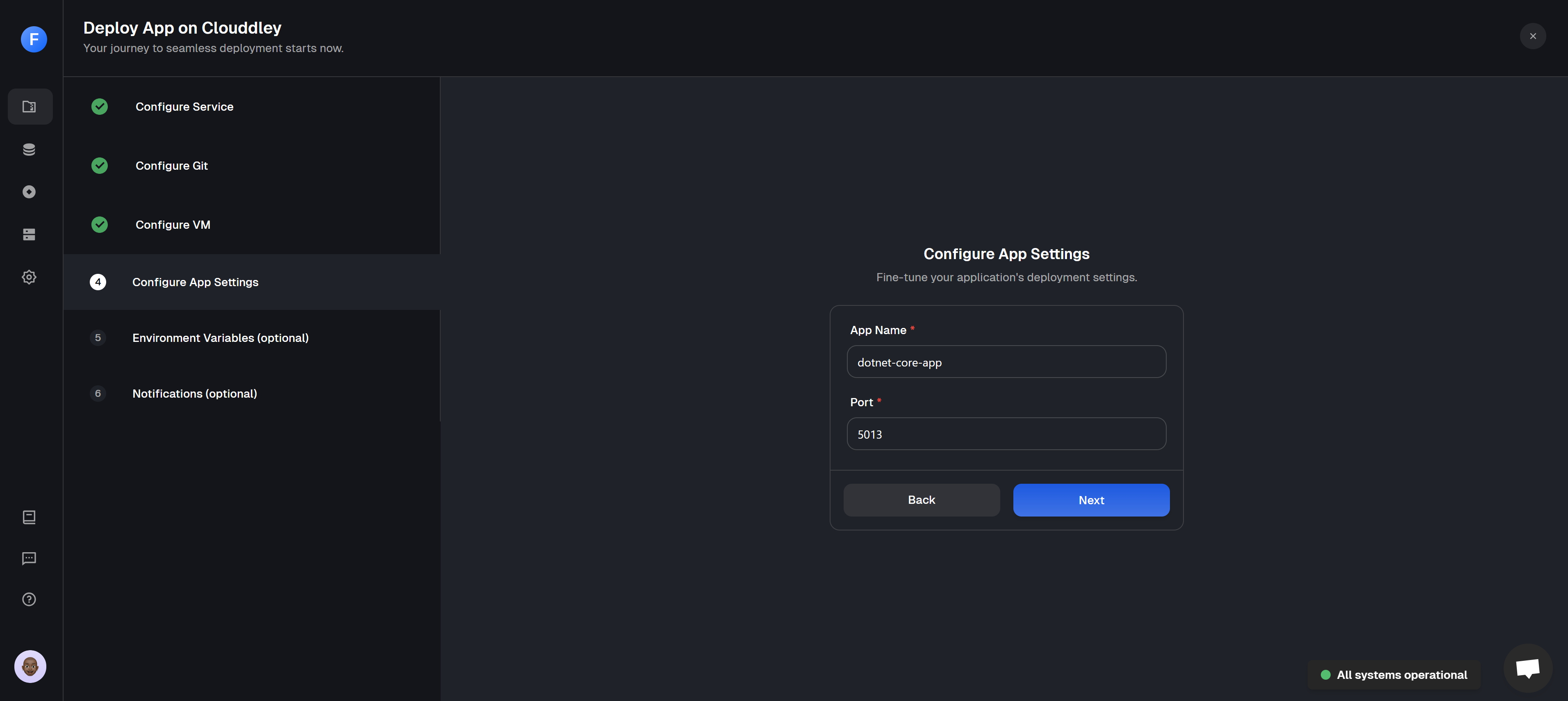
Step 4: Configure app settings

  • Insert the name of the application and its port.

  • Click on Next

Configuring App settings (name and port) during app deployment on Clouddley.
Configure the App name and port
circle-info

Ensure the virtual machine's firewall permits access to the application port.

Step 5: Configure Environment Variables

  • To add environment variables, click on βž• Add Variable

  • Choose an ENV mode: either a single variable or import variables. Learn more here.

Image showing the Single Variables ENV mode on Clouddley.
Single variable ENV mode
circle-info

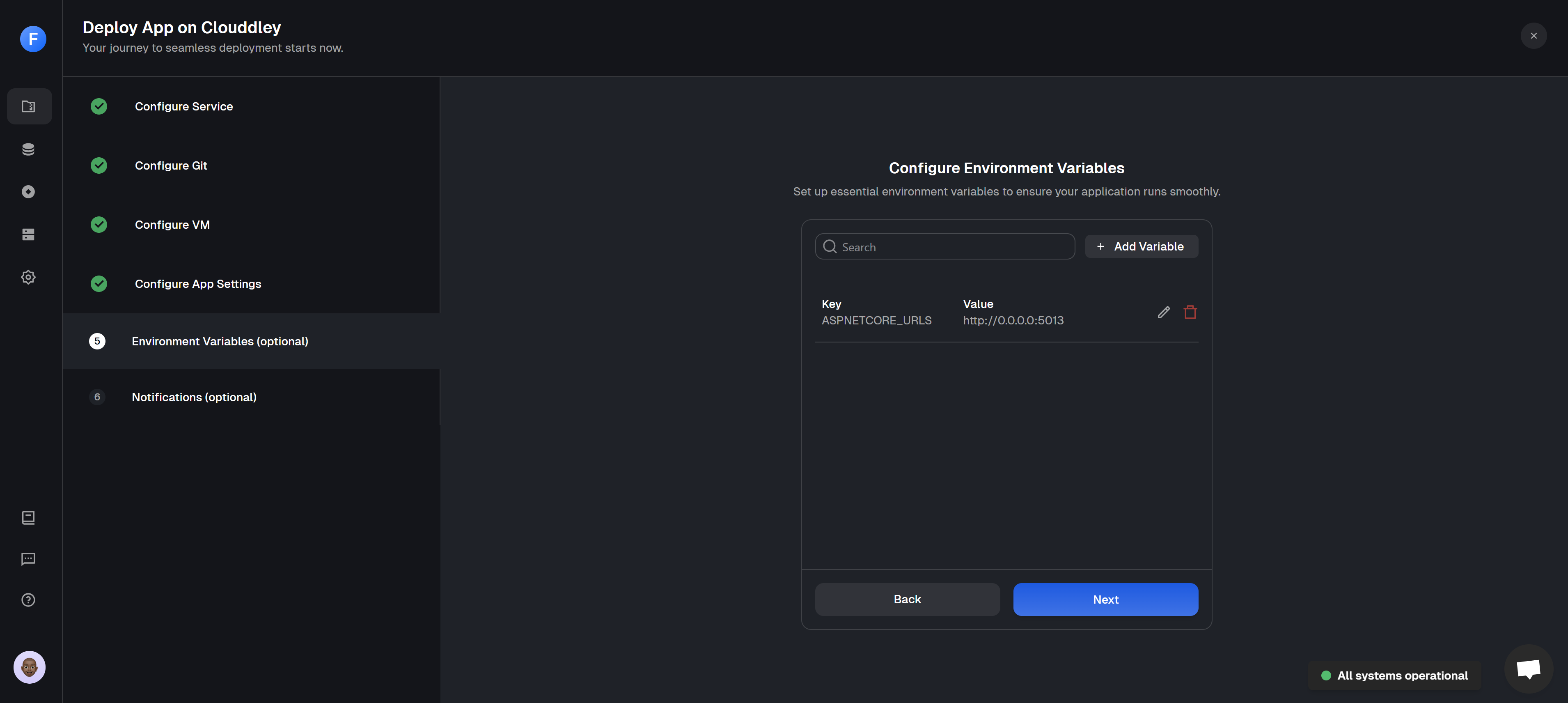
To deploy your .NET Core application on Clouddley, you need to set the URL for the application as an environment variable, which can either be DOTNET_URLS or ASPNETCORE_URLS. Since this is an ASP.NET Core application, we will set;

  • Add the key-value pairs and click on Save

  • Click on Next

Image showing environment variables added during app deployment on Clouddley.
Adding environment variables

Step 6: Set up Notifications (optional)

  • To configure the notification settings of the application, click on βž• Add Alert

  • Select the Alert type. For this tutorial, we will set up Email alerts.

  • Toggle on the buttons of the deployment event (failed, timed out, or success) you want to be notified of.

  • Enter the Email address where you want to receive alerts. (You can add multiple email addresses)

  • Click on Save

  • Click on Deploy

A gif showing how to set up notifications on Clouddley.
Notifications set up and creation of .NET Core application on Clouddley
Step 7: Test and Verify the app

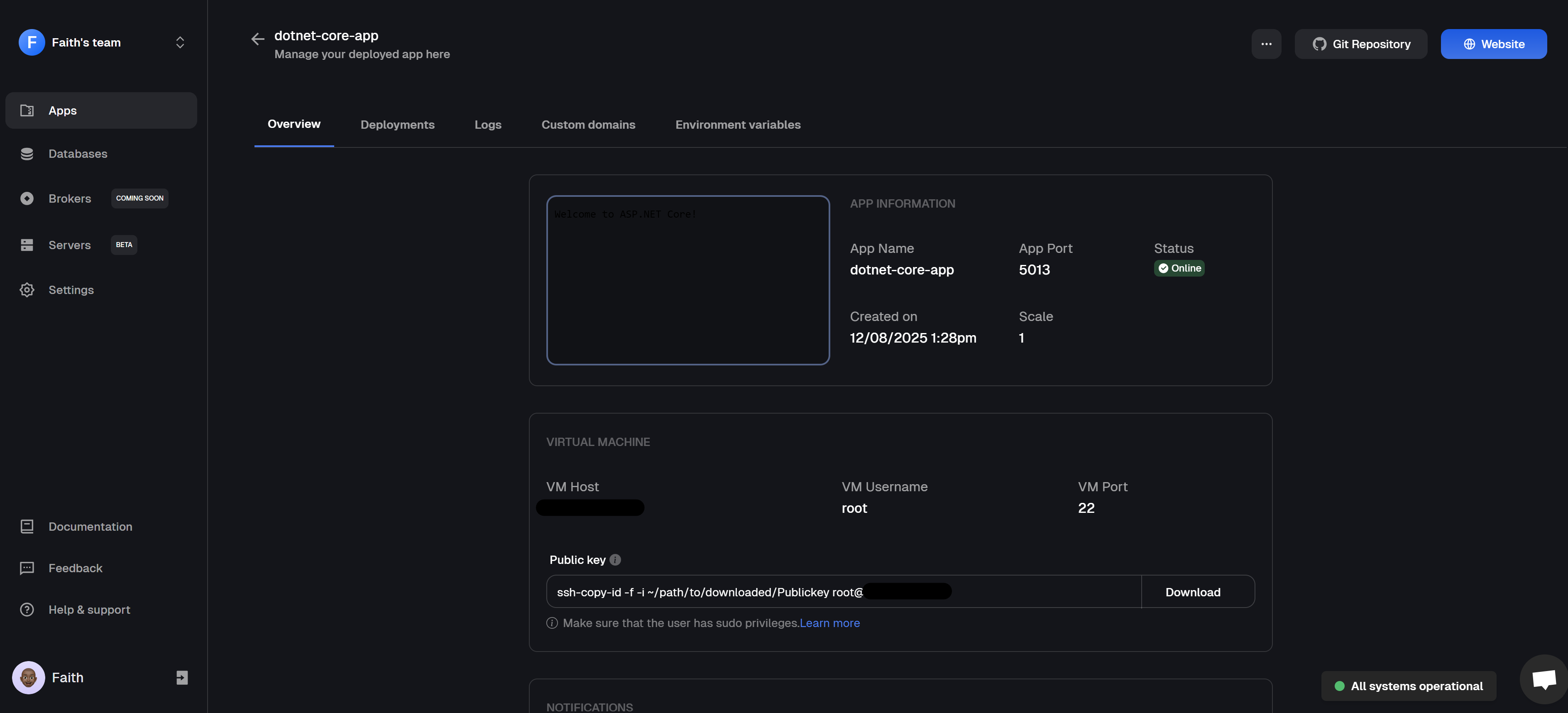
  • Click on Go to Dashboard. Your app will be visible on the apps dashboard.

  • After the app deployment is complete, the app status changes from Deploying to Online

An image of the overview of a successfully deployed Dotnet application on Clouddley.
.NET Core application dashboard overview

  • Click on 🌐 Website at the top right corner of the page, which opens the URL of the deployed application in your browser.

  • You can test the application functionalities.

An image of the Dotnet application running from Clouddley on the web.
.NET Core application running from Clouddley on a cloud virtual machine

You have deployed a .NET Core application successfully on Clouddley. You can manage it directly from the app dashboard by clicking the three dots (...) at the top-right corner to access Edit, Instant Rollback, Scale, Pause, and Delete options.

Additionally, you can switch to different tabs on the application dashboard to perform the following actions: view your deployment history, view or download logs, add a custom domain, and view the environment variables.

Conclusion

Congratulations πŸŽ‰ on successfully deploying a .NET Core application on Clouddley!. Feel free to explore the source code for this application herearrow-up-right. Furthermore, you can explore our how-to guides to discover how various frameworks can be deployed on Clouddley.

Last updated